
Dialog and reset
Fill in a form instead of remembering parameters; undo mistakes with a clear or a whole-note reset. Every write is one transaction and one undo step.
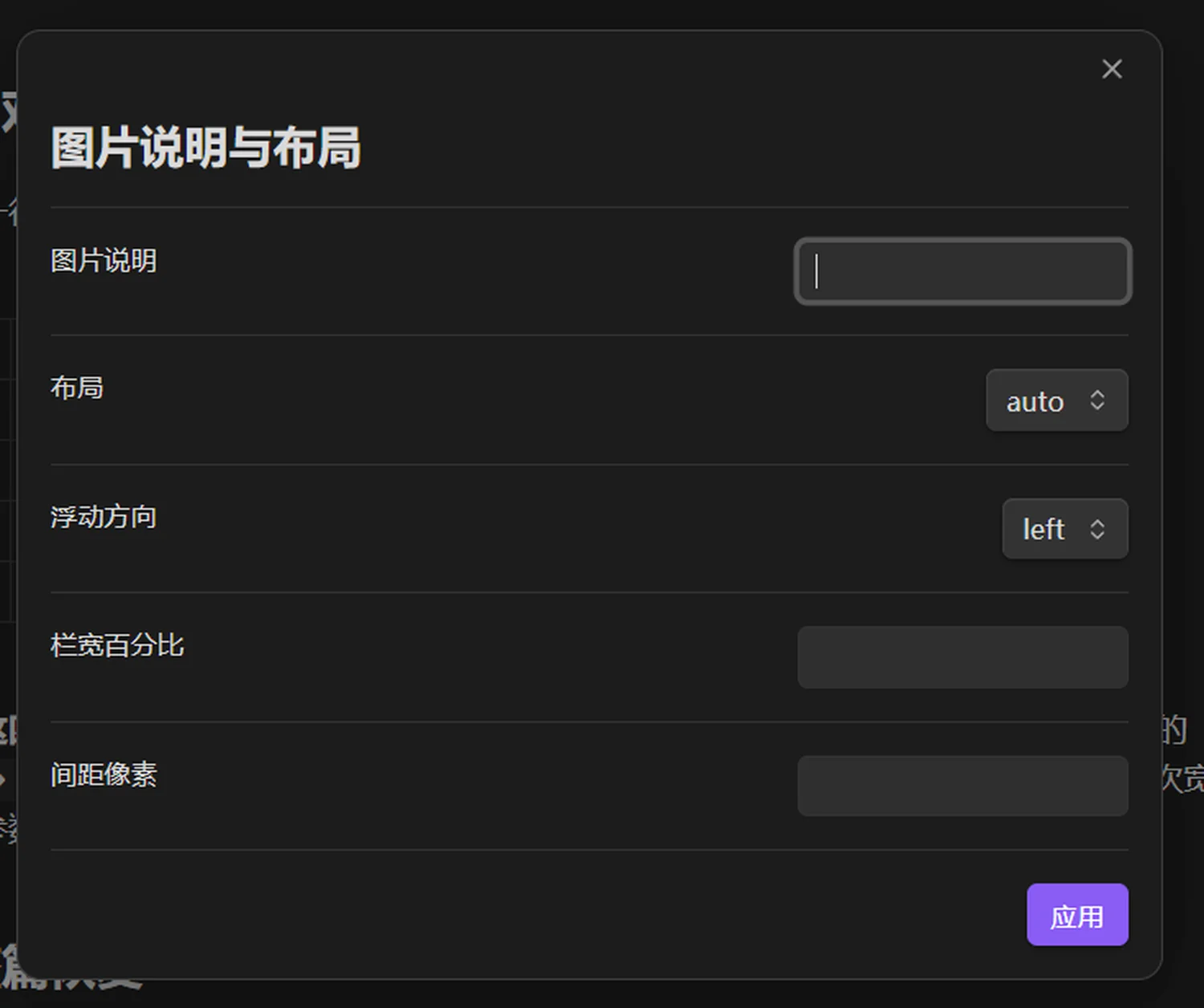
The caption dialog edits caption, layout, float side and width.
The caption dialog
Put the cursor on an image line and run "Set image caption and layout" from the command palette. The dialog has five fields (caption, layout, float side, width, gap):
| Field | Writes | Note |
|---|---|---|
| Caption | the first non-ag: field | the caption itself, no | needed |
| Layout | ag:layout | auto / gallery / float / center |
| Column width % | ag:width | 10–100, empty means automatic |
| Gap (px) | ag:gap | 0–80, only affects floated images |
The dialog changes only these four, leaving every other parameter on the line untouched — cropping, row splits, isolation all survive.
Parameters are always written in the same order (isolate → exclude → group → layout → side → width → gap → rows → crop → top), so changing a width never displaces a hand-written crop and never produces a pointless diff.
Clear and reset
| Command | Effect | Note |
|---|---|---|
| Clear image caption and layout | empties the caption and removes every layout parameter | also removes ag:isolate, ag:exclude, ag:rows, ag:group |
| Restore document default image style | resets the whole note | asks for confirmation, then reports how many images changed |
"Restore" walks every image in the note and removes its width, alignment, crop and gap, returning them to automatic routing. It does not touch the images themselves or the file structure — just one editor transaction, so Ctrl/Cmd+Z undoes all of it.
When there is nothing to restore, it says so instead of pushing an empty undo step.
Which one to use
| Clear | Restore | |
|---|---|---|
| Scope | the line under the cursor | the whole note |
| Good for | one image that went wrong | a pile of experiments you want gone |
| Confirmation | none | yes |
| Undo | one step | one step |
When not to use the dialog
- You need
ag:crop/ag:top: the dialog has no crop fields, use the crop dialog. - You need a specific row split: write
ag:rowsby hand (no drag writes it); to keep a row's members together, use the link button in gallery handles to writeag:group. - You need to change many widths at once: use a template instead of editing image by image.
Next
- Commands: the full list
- Annotation syntax