
Pagination
Five rules decide which page content lands on: gallery rows never split, a trailing single image shrinks to the foot, a float and its prose move together, a heading starts a page or is never stranded, and trailing orphan lines are pulled back.
Pagination is not slicing a continuous column into pages by height. The plugin first cuts the page boundaries you asked for, then shrinks what does not fit until it meets the page foot, and finally reclaims a last page that holds only a line or two. Every adjustment happens inside a temporary print tree and is reverted when the export ends; the note is never rewritten.
Toggling “Heading pagination” in the paginated preview repaginates the right-hand pages; when off, headings no longer force a page break.
What goes wrong without it
- A row of five images is cut by the page edge: three on the upper half, two on the lower.
- A portrait image misses the page foot by a few centimetres, jumps whole to the next page, and leaves a large blank at the bottom.
- A heading sits on the last line of a page and its body starts on the next one.
- The final page holds a single sentence while every earlier page is packed.
Those four page feet are what the five rules below exist to prevent.
Rule 1 — A gallery row never splits
A gallery row is one unit: either the whole row is on this page, or the whole row moves to the next one. You never see three cells on the upper half and two on the lower.
When it does not fit, all three cells shrink by the same factor, each stays centred inside its fixed column slot, and the column width does not change. Past the cap the whole row moves. A row is never used as a donor to rescue another picture, and orphan repair never compresses it.
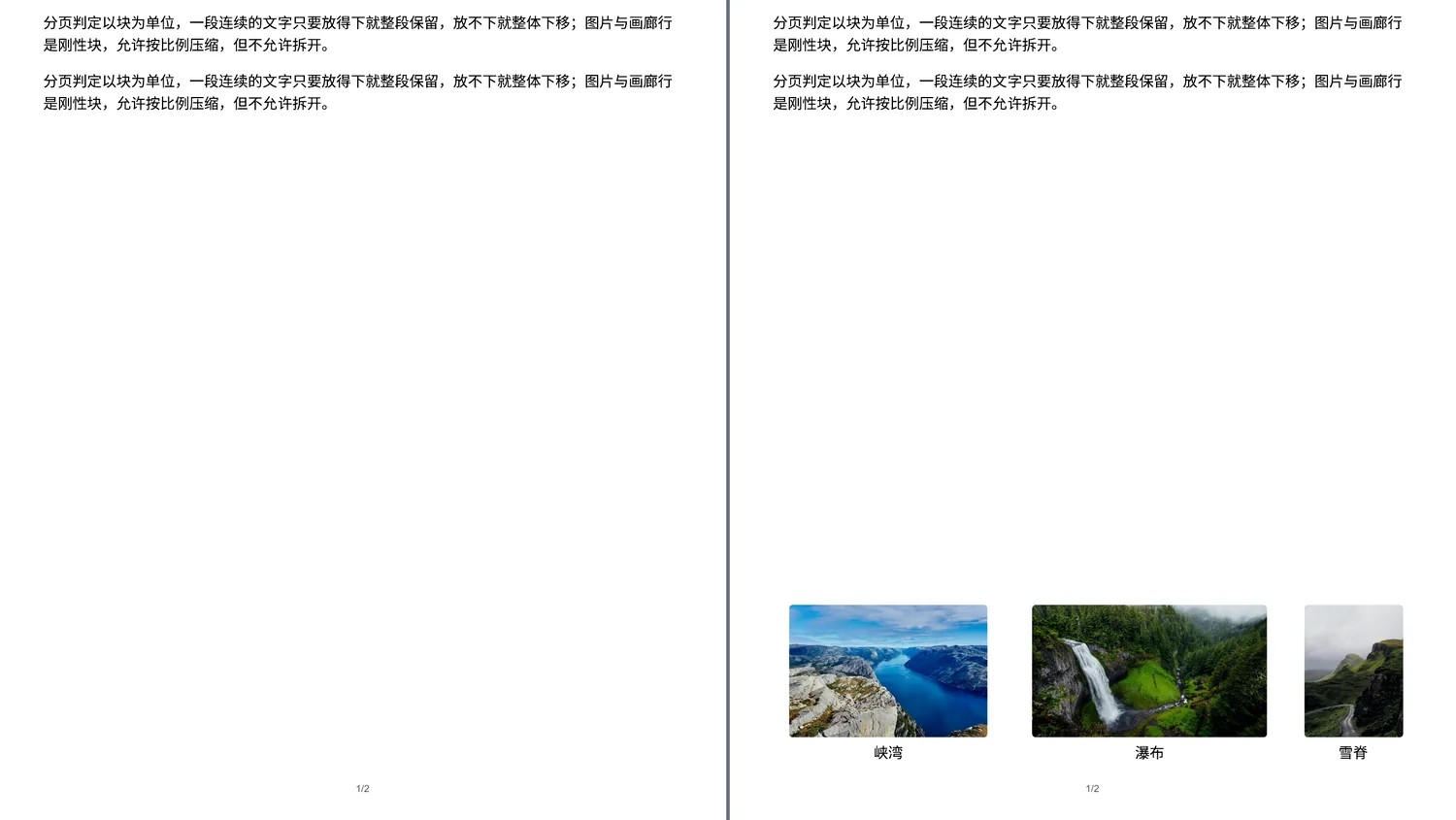
Left: optimisation off, the row moves and the page tail is blank. Right: optimisation on, the row shrinks by one factor, column widths unchanged, and sits on the page foot.
Related settings: Max image shrink (default 15%).
Rule 2 — A trailing single image shrinks to the page foot
When one image does not fit at the page end, the plugin measures the distance between its bottom edge (caption included) and the page foot, then shrinks that image only to the smallest ratio that makes it sit flush. No other image on the page moves and no extra page break is inserted.
- Only after the target's own cap is exhausted does it touch other pictures on the page (up to four) or the line height, following "image pagination priority".
- Body text sharing a paragraph with the image is split into an independent block, so once the image sits flush the prose naturally continues on the next page.
- Any failure rolls back atomically; there is no in-between state where the image is half shrunk and still cut.
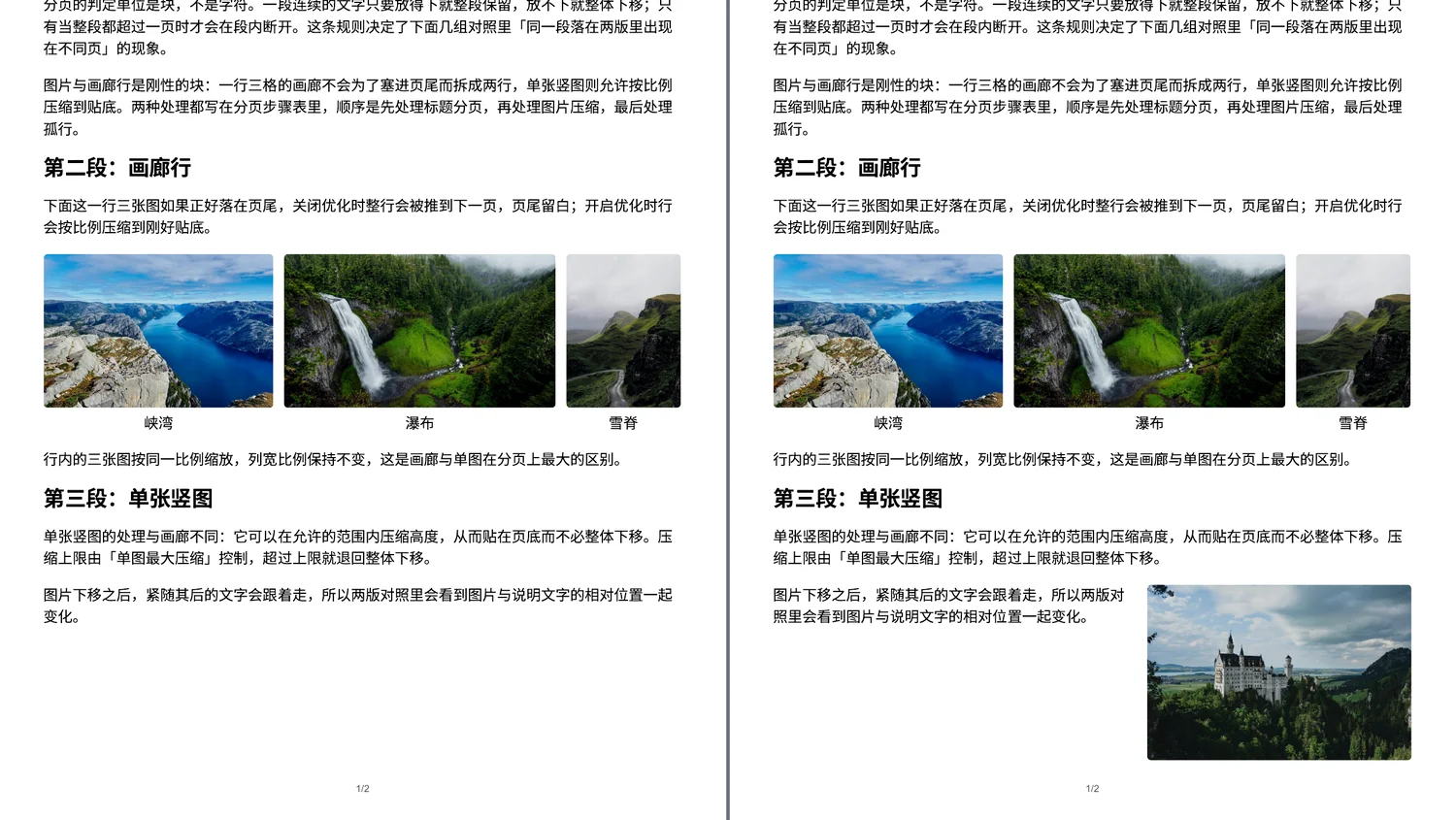
Left: optimisation off, the image moves to the next page and the tail is blank. Right: only that image shrinks and sits flush with the page foot.
Related settings: Image pagination optimisation, Priority margin, Max image shrink, Max line-height shrink.
Rule 3 — A float and its prose move together
Only when "Float space" is set to "Follow document order" does a float bind to the prose that follows it, provided that prose ends within the picture's height: if the pair does not fit, both move to the next page.
- When the prose is longer than the picture, the binding is released; the remaining lines continue on the next page instead of dragging the whole paragraph along.
- "Share the float space" does not bind: prose fills the free space on the current page and the picture paginates on its own rule.
- The decision looks at the picture's bottom edge, never at how far the wrapped prose runs. A picture is never cut in half at a page edge.
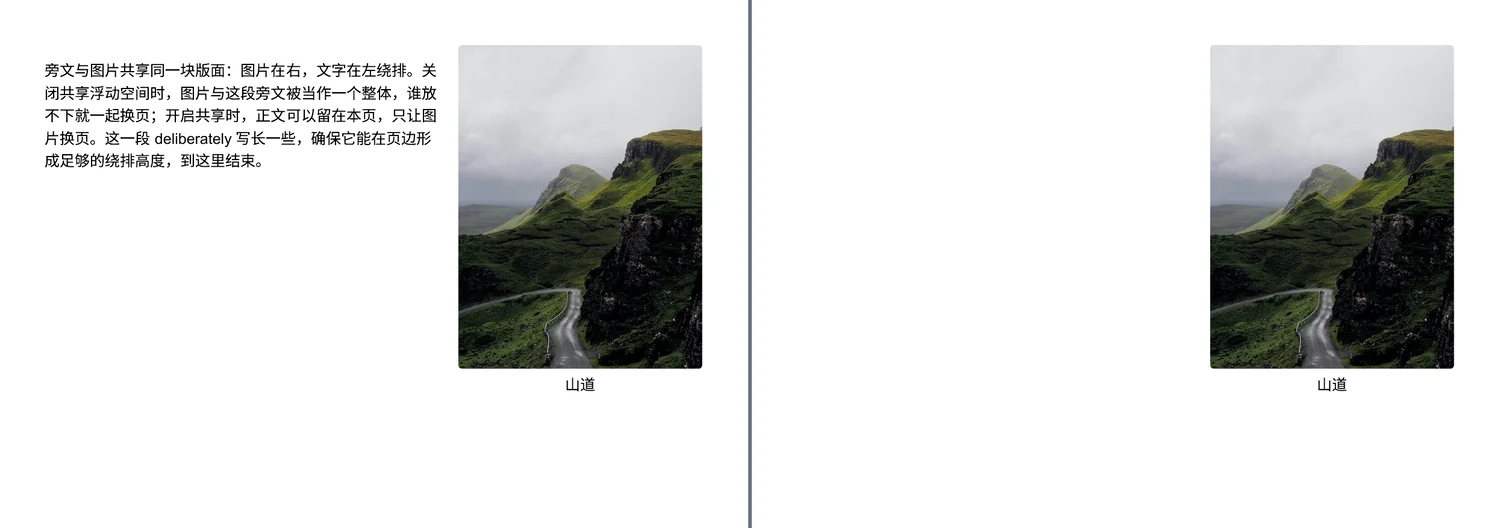
Left: float space follows document order, so the picture and its prose both sit on page 2. Right: shared float space, so the prose stays on page 1 and only the picture moves to page 2.
Related settings: Float space.
Rule 4 — A heading starts a page or is never stranded
With heading pagination on, headings at or above the chosen level start a new page. Choosing h2 means both h1 and h2 paginate.
Even with heading pagination off, a heading that lands at the page foot while its body would break is carried to the next page. Two adjacent headings (an h1 immediately followed by an h2) form one heading block and cut once, so no blank page appears between them.
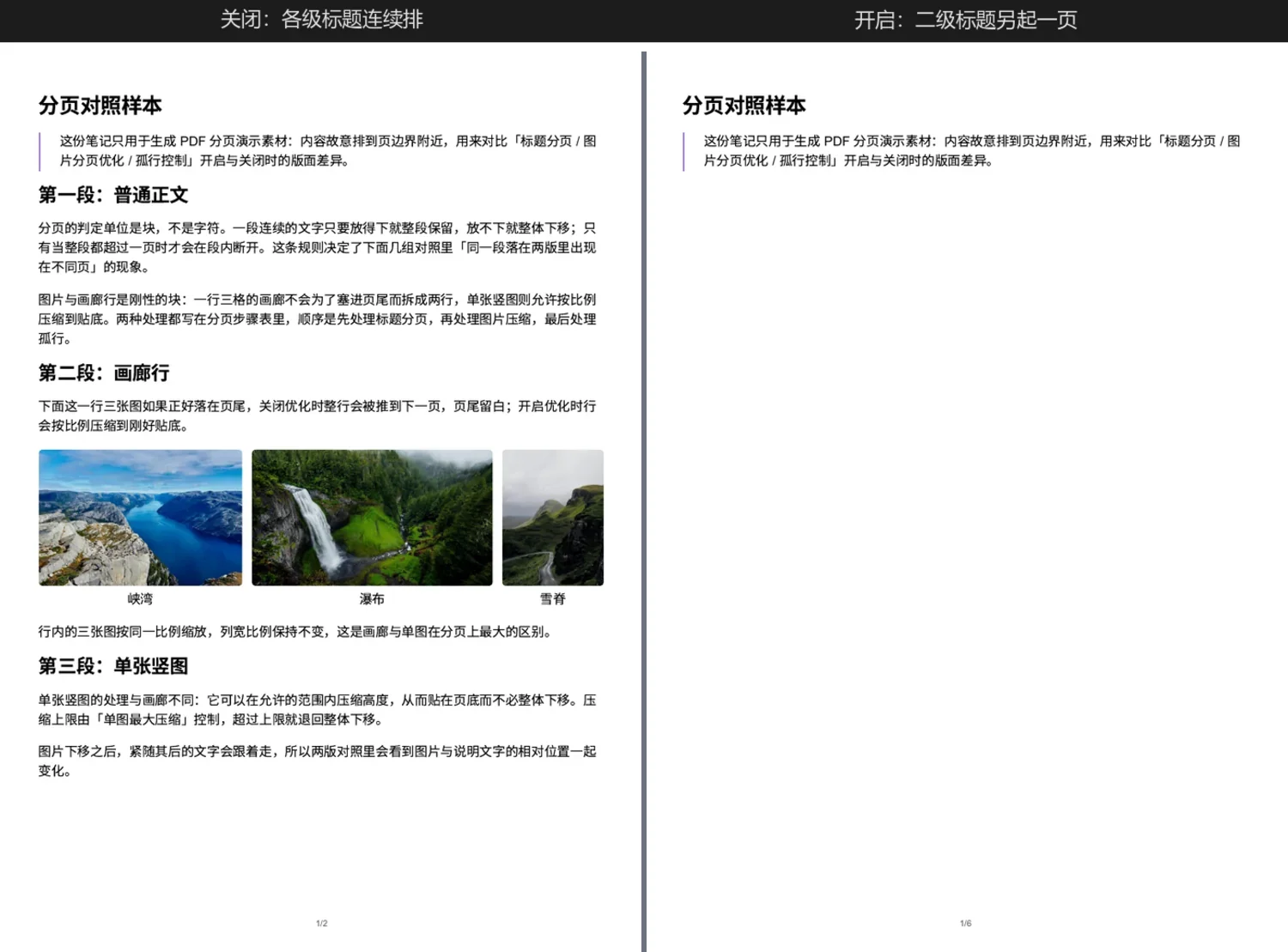
Left: heading pagination off, page 1 runs through to Section 3. Right: with heading pagination at level h2, page 1 holds only Section 1 and everything after moves.
Related settings: Heading pagination, Heading pagination start level.
Rule 5 — Trailing orphan lines are pulled back
When the last page holds only one or two lines, the plugin compresses the previous page's pictures or line height to pull them back; a middle page whose head is a single line is handled the same way.
- Pictures shrink first (1% per step), then line height (2% per step, capped at 10%); the order follows "Priority margin".
- A page opened deliberately by heading pagination is not treated as a page-head orphan; the two rules do not stack.
- At most three repairs per export. If the last page has no picture to compress, leftover paragraph margins are removed and the repair is retried.

Left: orphan control off, three lines on the last page. Right: one line is pulled back and the last page holds two.
Related settings: Orphan control, Allowed lines on the last page (default 2, range 1–5).
How the five rules are ordered
- Heading pagination cuts the forced page boundaries first.
- Gallery rows next: whole-row break or whole-row shrink.
- Trailing single images next: shrink to the page foot.
- Heading page-foot guard next: keep the heading on this page when a shrink makes room.
- Orphan repair last: pull back a last page that ended up too short.
The order cannot be reversed — shrinking images before cutting pages pushes already-fitted images down again. Every pass re-measures, because one compression changes the page numbers of everything after it; the default budget is four passes.
Settings
| Setting | Default | Range | Effect | Scope |
|---|---|---|---|---|
| Heading pagination | off | on / off | headings at the chosen level start a new page | settings + export window (this export only) |
| Heading pagination start level | h1 | h1–h6 | choosing h2 paginates both h1 and h2 | same |
| Image pagination optimisation | on | on / off | master switch for page-foot compression | settings + export window (persists) |
| Priority margin | image height | image height / line spacing | what to compress once the target's cap is spent | settings only |
| Max image shrink | 15% | 0–50% | cap for a single image and a whole row | settings only |
| Max line-height shrink | 10% | 0–20% | cap for line-height compression | settings only |
| Orphan control | on | on / off | master switch for last-page reclaim | settings + export window (persists) |
| Allowed lines on the last page | 2 | 1–5 | reclaim threshold | settings only |
| Float space | follow document order | ordered / share | decides whether rule 3 binds | settings only |
The export window exposes only three pagination controls: heading pagination (with its level), image pagination optimisation and orphan control. Heading pagination applies to that export only; image optimisation and orphan control write back to the settings tab, so the next export and the settings page show the new values. The two shrink caps, the allowed line count, the priority margin and the float space can only be changed in the settings tab.
What it does not do
- Shrink only, never enlarge: it will not scale a picture or a font up to fill a page foot.
- Hard cap: a single image or a whole row shrinks by at most "Max image shrink"; past that the block moves whole and a blank page foot is the expected result.
- No column re-layout: when a row shrinks, all three cells shrink by the same factor inside unchanged slots, so the row width and alignment stay put.
- No compression inside tables, code blocks or math blocks: they are paginated as units; they may still break internally when they exceed a page.
- No page balancing: only the last page and a middle page whose head is exactly one line are handled, at most three repairs per export.
- Gives up when height does not follow width: in a fixed-height container, narrowing does not make it shorter; the plugin probes once and rolls back.
- The native-export fallback does not run full pagination: a hidden print document has degenerate geometry, so row protection, geometric compression and orphan reclaim may not apply; only CSS-level rules are guaranteed.
- Page numbers consume the margin: a footer page number needs at least 11 mm of bottom margin, otherwise it is clipped.
- Rule 3 does not apply in share mode: prose fills the free space on the current page.
- Never rewrites the note: every change lives in the temporary print tree and is reverted when the export ends.
Check it yourself
- Open
18-PDF分页in the demo vault and run "Export PDF (AutoGallery)". - Switch the export window to "Paginated preview" and find the first page boundary.
- Turn "Image pagination optimisation" off, preview again, and compare the same page foot.
- Turn heading pagination on with level h2 and watch whether every h2 starts a page.
- Change "Allowed lines on the last page" from 2 to 1 or 3 and watch whether the total page count changes.
One command re-checks every pagination comparison still holds (assertions only, nothing written):
node tools/capture/pdf-stills.mjs --all --lang en --verify-only